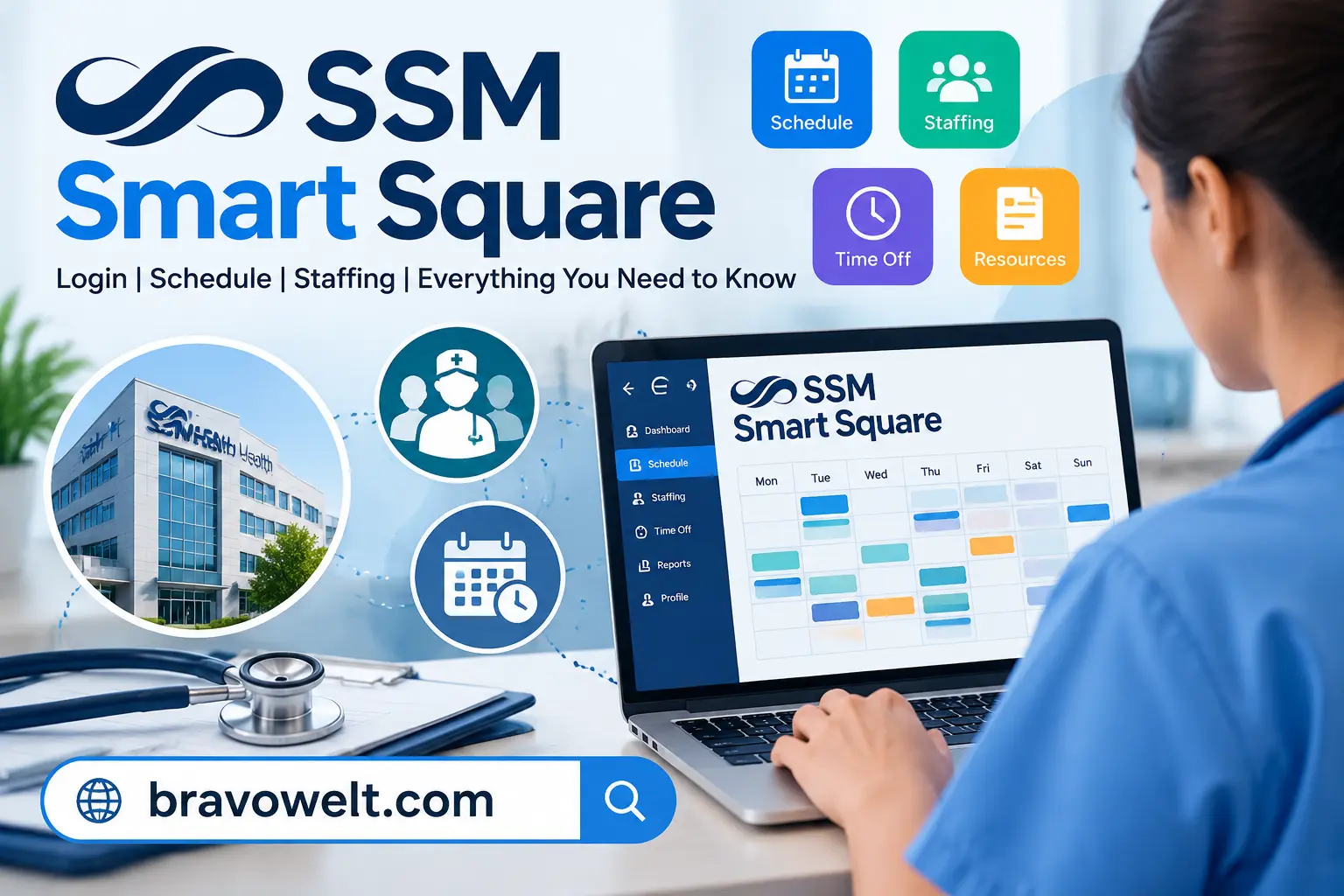
SSM Smart Square is a commonly searched term among healthcare employees who want to access their work schedules, manage shifts, and understand their organization’s workforce scheduling system. For nurses, hospital staff, and scheduling professionals, knowing how the platform works can make everyday scheduling tasks easier.
Whether you need help with SSM Smart Square login, checking upcoming shifts, recovering your password, or understanding employee scheduling, this guide explains the essential information in simple English. You will learn how to access the system, troubleshoot common problems, understand scheduling features, and protect your account.
What Is SSM Smart Square?
SSM Smart Square refers to the Smart Square workforce scheduling platform associated with SSM Health. Smart Square is a healthcare workforce management solution designed to help organizations coordinate staffing requirements, employee schedules, and related workforce activities.
Healthcare facilities operate around the clock, so managing staffing is more complex than assigning standard office hours. Hospitals must consider different departments, shift patterns, employee availability, qualifications, and changing patient-care demands.
Workforce scheduling software helps organize these responsibilities in a structured digital environment. Depending on the organization’s configuration, authorized employees may be able to view schedules, review assignments, and submit certain scheduling requests.
The features available to each user can vary according to their role, department, access permissions, and the way the organization has configured the system.
What Is SSM Smart Square Used For?
The primary purpose of the platform is to support healthcare workforce scheduling and staffing coordination. It can help employees and managers access scheduling information and organize work assignments more efficiently.
Depending on the available features, common uses may include:
- Work schedule access: Reviewing assigned shifts and working hours.
- Shift management: Checking shift information and submitting permitted scheduling requests.
- Employee availability: Providing availability information through supported tools.
- Staffing coordination: Helping managers organize coverage across departments and shifts.
- Schedule updates: Reviewing changes made by authorized scheduling personnel.
- Workforce planning: Supporting staffing decisions based on operational requirements.
- Employee self-service: Allowing staff to complete certain scheduling tasks without contacting a manager for every routine question.
Not every feature is necessarily available to every employee. If an option does not appear in your account, your organization may manage that task through another system or restrict it to specific roles.
How Does SSM Smart Square Work?
The platform supports the scheduling process by giving authorized users access to workforce information and the functions assigned to their accounts.
A typical workflow involves several steps:
- Account access: The employee signs in through the organization’s approved login portal.
- Schedule review: The employee opens the scheduling section and checks available assignments.
- Request submission: If permitted, the employee submits an availability update or scheduling request.
- Management review: A manager or staffing administrator reviews requests that require approval.
- Schedule updates: Approved changes are reflected according to the organization’s procedures.
Managers may use workforce scheduling tools to review staffing requirements, coordinate assignments, and identify potential coverage gaps.
Employees generally have more limited permissions than administrators. They cannot necessarily change every shift or approve their own requests.
Always confirm the status of a request before assuming that your official schedule has changed. Submitting a request does not automatically mean it has been approved.
SSM Smart Square Login: Step-by-Step Access Guide
Accessing the employee scheduling portal generally involves opening the correct website and signing in with your assigned credentials.
Follow these steps:
- Open the official SSM Health employee resources or the Smart Square login route provided by your employer.
- Check the website address before entering your credentials.
- Enter your assigned username or other required sign-in information.
- Enter your password or follow the authentication instructions displayed.
- Complete multifactor authentication if your organization requires it.
- Once signed in, open the scheduling section available to your account.
- Review your current shifts, upcoming assignments, or other available scheduling information.
The exact process may differ depending on your organization’s authentication settings. You may be redirected to a centralized employee sign-in service before reaching the scheduling application.
If you cannot locate the correct login page, contact your supervisor or IT help desk instead of entering your credentials on an unfamiliar website.
What Is the Official SSM Smart Square Login Website?
The safest way to find the correct login page is through SSM Health’s official employee resources, internal employee portal, or instructions provided by your department or IT team.
Not every website that mentions Smart Square is an authorized login portal. Some websites publish general information about the platform without providing official access.
Before entering your username or password, verify the domain and confirm that the page belongs to your employer’s approved sign-in process. A padlock icon in the browser does not, by itself, prove that a website is official.
If you are unsure which login address to use, ask your manager, staffing office, or IT help desk to confirm the correct portal.
SSM Smart Square Login Requirements
Before signing in, make sure you have the credentials and access required by your organization.
Common requirements may include:
- An active employee or authorized user account.
- The correct username or organizational login credentials.
- A current password, unless another authentication method is used.
- A reliable internet connection.
- A supported web browser.
- Multifactor authentication, if required.
- Appropriate permissions for the scheduling application.
- An approved device or network, where employer policies require one.
New employees may need to complete account activation before accessing scheduling tools.
If your credentials work for another employee service but not for the scheduling portal, the problem may involve application permissions or separate account settings. Contact IT support if the issue continues.
How to Log In to SSM Smart Square for the First Time
First-time access may require account activation or assistance from your employer.
Start by confirming that your employee account has been created and activated. If you have not received login instructions, contact your supervisor, onboarding team, or IT help desk.
Once you have the required information:
- Open the approved scheduling portal.
- Enter the username or credentials provided by your organization.
- Complete any initial password setup or identity verification.
- Follow the multifactor authentication instructions if prompted.
- Open the scheduling section after successful sign-in.
- Check that the displayed information corresponds to your correct department or role.
If you can sign in but cannot see a schedule, your account may lack the necessary scheduling permissions, your employee assignment may not be fully configured, or the schedule may not yet be published.
Report the issue to the appropriate administrator instead of creating a duplicate account.
How to Reset Your SSM Smart Square Password
If you forget your password, use the recovery process available through the authorized login page or your organization’s identity-management service.
The exact procedure depends on how the employer has configured authentication.
A typical password-reset process involves:
- Opening the approved login page.
- Selecting the password recovery option, if available.
- Entering the requested username or account information.
- Completing the required identity verification.
- Following the instructions provided through the approved recovery method.
- Creating a new password that meets the displayed requirements.
- Returning to the login page and signing in again.
If the login page does not offer password recovery, your organization may use a centralized employee password system. Follow the official instructions or contact IT support.
Never share your password or verification code with another person. Use only approved recovery channels.
How to Recover Your Username and Account Access
A forgotten username can prevent access even when your password is correct.
Start by checking official onboarding instructions or employee communications that contain your assigned sign-in information. Your username may be the same as the one used for other employee services, but this depends on your organization’s configuration.
If you cannot find it, contact the IT help desk or designated administrator and complete the required identity-verification process.
If you can access other employee systems but cannot open the scheduling platform, explain this when requesting support. Your problem may involve application permissions rather than your username.
Avoid creating duplicate accounts, using another employee’s credentials, or relying on unofficial account-recovery services.
Common SSM Smart Square Login Problems and Solutions
Login problems can result from incorrect credentials, expired passwords, account restrictions, browser issues, authentication failures, or missing permissions.
| Problem | Possible cause | What to try |
|---|---|---|
| Incorrect password | Typing error or outdated password | Re-enter your credentials or use the approved reset process |
| Username not recognized | Incorrect username or account setup issue | Check official instructions and contact IT if needed |
| Page keeps loading | Network, browser, or service problem | Refresh the page and check your connection |
| Blank login screen | Cached data or browser compatibility | Start a fresh browser session or clear the relevant cache |
| Verification code fails | Expired code or authentication issue | Request a new code through the approved method |
| Schedule is missing | Permissions or unpublished schedule | Contact the staffing office or administrator |
| Account is locked | Too many unsuccessful attempts or a security restriction | Follow the official account-unlock process |
| Remote access fails | Network restrictions or additional security requirements | Follow employer-approved remote-access instructions |
Try one troubleshooting step at a time. Repeatedly entering incorrect credentials may trigger additional security restrictions.
Why Is SSM Smart Square Not Working?
When the scheduling portal stops working, the cause may be related to your device, internet connection, account, or the service itself.
Common explanations include:
- Temporary service interruption: The application or authentication service may be unavailable.
- Scheduled maintenance: Access may be restricted while maintenance is performed.
- Internet problems: A weak or interrupted connection can prevent the login page from loading.
- Browser compatibility: Outdated software or conflicting extensions may interfere with the portal.
- Account restrictions: Expired credentials, a locked account, or missing permissions can prevent access.
- Authentication issues: Multifactor verification or a centralized sign-in service may be experiencing problems.
- Unpublished schedules: A successful login does not guarantee that upcoming assignments have been released.
First, identify whether the problem occurs before or after signing in. If the page does not load, check connectivity and browser settings. If you can sign in but cannot view scheduling information, investigate permissions or schedule availability.
If several authorized employees experience the same problem, notify your organization’s support team because the issue may affect the wider system.
How to Fix SSM Smart Square Login Errors
Use the following troubleshooting sequence to address common login errors.
Step 1: Verify the login address. Make sure you are using the portal approved by your employer rather than an outdated bookmark or third-party website.
Step 2: Check your credentials. Look for typing errors, extra spaces, or incorrect keyboard settings.
Step 3: Test your internet connection. Confirm that the connection is stable and other approved websites load normally.
Step 4: Start a fresh browser session. Close the affected tab and reopen the portal. If necessary, try another supported browser.
Step 5: Review your password status. Use the official recovery process if your password has expired or no longer works.
Step 6: Complete authentication correctly. Follow any verification instructions and use the current code or approved authentication method.
Step 7: Check account permissions. If authentication succeeds but the application remains inaccessible, ask IT to verify your access.
Step 8: Contact support. Provide the exact error message, the time it occurred, and the steps you have already tried.
Do not disable security controls, install unapproved software, or use another employee’s account as a workaround.
What to Do If Your SSM Smart Square Account Is Locked
An account may be locked after repeated unsuccessful sign-in attempts or because of a security restriction.
If you encounter an account-lock message, stop trying random passwords. Repeated attempts may extend the problem or trigger further restrictions.
Instead:
- Read the message displayed on the login page.
- Follow any official account-unlock or password-reset instructions.
- Contact the IT help desk if self-service recovery is unavailable.
- Complete the required identity verification.
- Ask support whether you need an account unlock, password reset, or permission update.
If you suspect someone else has attempted to access your account, report the concern to IT support and follow your employer’s security procedures.
How to Access SSM Smart Square From Home
Remote access depends on your employer’s security policies and technical configuration.
If remote access is permitted, you may be able to use the approved scheduling portal from a personal computer or another authorized device. Some organizations require additional authentication, a managed device, or an approved remote-access connection.
To access the system from home:
- Confirm that your role is authorized for remote access.
- Use the login address provided through official employee resources.
- Connect to any required employer-approved remote-access service.
- Sign in using your own credentials.
- Complete additional verification if prompted.
- Review your schedule and sign out when finished, particularly on a shared device.
If access works at your workplace but fails at home, the cause may involve network restrictions or remote-access settings.
Do not attempt to bypass employer security requirements. Ask IT to confirm the approved remote-access method.
Can You Access SSM Smart Square on a Mobile Device?
Mobile access may be possible through a supported browser or an organization-approved application, depending on the system configuration.
If you want to check a shift from your phone, confirm that the portal supports your device and that your employer permits mobile access.
For a better experience:
- Use an updated, supported browser.
- Keep your phone’s operating system current.
- Use a secure network when accessing employee information.
- Avoid saving credentials on shared or borrowed devices.
- Enable your device’s screen lock.
- Follow your organization’s mobile-device policies.
Some scheduling pages may display differently on smaller screens. If a feature is unavailable on mobile, try an approved desktop browser or ask your support team whether a mobile-compatible version is available.
Being able to open the login page on a phone does not guarantee that every scheduling function is supported.
Does SSM Smart Square Have an Official Mobile App?
Do not assume that a standalone mobile application is available simply because the scheduling platform can be accessed online.
App availability, supported devices, and approved download methods can change. Confirm the current arrangements through official SSM Health employee resources or your IT department.
If your organization directs employees to use an application, verify its publisher and download it only through an approved distribution channel. Avoid unofficial downloads that request employee credentials.
If no approved application is provided, a supported mobile browser may be an alternative, provided your employer permits it.
SSM Smart Square Employee Scheduling: How It Works
Employee scheduling in healthcare involves coordinating shifts with staffing requirements while accounting for employee availability, job roles, and operational policies.
Workforce scheduling software can help centralize information and make schedules easier to review. The precise workflow depends on how the healthcare organization uses the platform.
A scheduling process may involve:
- Staffing planning: Managers determine coverage requirements for different departments and shifts.
- Schedule creation: Authorized personnel prepare assignments based on staffing needs and applicable policies.
- Schedule publication: Employees receive access to the schedule when it is released.
- Employee review: Staff check assigned hours and identify potential conflicts.
- Request submission: Employees submit permitted scheduling or availability requests.
- Approval and updates: Authorized personnel review requests and make changes according to workplace procedures.
The platform supports the process, but organizational policies still determine how shifts are assigned, exchanged, approved, or changed.
Employees should review published schedules regularly and use official communication channels if an assignment appears incorrect.
How to View Your Work Schedule in Smart Square
The exact navigation may vary, but the general process is straightforward.
- Sign in through your approved employee scheduling portal.
- Open the schedule, calendar, or shift-viewing section available to your account.
- Select the relevant date range if the interface provides that option.
- Review your assigned shifts and working hours.
- Check for updated assignments or scheduling notices.
- Report missing or incorrect information to your manager or scheduling administrator.
When reviewing your calendar, pay attention to the date, shift start time, end time, department, and relevant notes.
If the schedule appears empty, do not automatically assume that you have no upcoming shifts. The schedule may not yet be published, your account may lack the correct permissions, or you may be viewing the wrong date range.
For urgent questions about an upcoming shift, follow your department’s established contact procedure.
How to Check Upcoming Shifts and Shift Assignments
Reviewing upcoming shifts helps employees prepare for work and avoid misunderstandings about their responsibilities.
After signing in, open the available scheduling view and move to the relevant future dates. If the system provides calendar and list views, choose the format that makes your assignments easiest to understand.
Check the following details:
- Shift date and scheduled hours.
- Assigned department or work area, if displayed.
- Any changes made since your previous review.
- Notes or notifications associated with an assignment.
- Whether a shift is confirmed or still subject to approval.
It is useful to check your schedule regularly, particularly when your department frequently updates staffing arrangements.
If a shift appears different from a previous version, confirm the change with the authorized scheduling team. Do not assume that an informal conversation or an unapproved request automatically changes your official assignment.
How to Manage Shift Changes and Schedule Requests
Shift changes are common in healthcare, where employee availability and staffing needs can change quickly. However, the process depends on workplace policy and the features enabled in the scheduling system.
If the portal provides a shift-change or scheduling-request option, review its instructions before submitting a request.
A typical process may involve:
- Opening the relevant schedule or shift record.
- Selecting the permitted request option.
- Providing the requested details.
- Submitting the request for review, if required.
- Checking its status after submission.
- Confirming the final schedule after an authorized decision.
Some changes require approval from a manager or staffing coordinator. Others may be handled through a separate employee policy or departmental procedure.
Do not assume that another employee’s willingness to exchange shifts is sufficient. The proposed change may still require formal authorization to ensure appropriate staffing and coverage.
For the latest updates and guides, visit our Vera Bradley Women’s Large Envelope Tech Sleeve.
How Employee Self-Scheduling Works in SSM Smart Square
Employee self-scheduling allows staff to participate in certain scheduling decisions rather than relying entirely on managers to assign every shift.
When enabled, self-scheduling may allow eligible employees to express preferences, submit availability, or select from permitted scheduling options during a designated period.
However, self-scheduling does not mean employees can choose any shift without restrictions. Healthcare facilities must maintain suitable coverage across departments and working hours.
Depending on organizational rules, requests may be limited by:
- Required staffing levels.
- Employee qualifications and assigned roles.
- Shift availability.
- Maximum working hours or other scheduling policies.
- Rest-period requirements.
- Department-specific rules.
- Submission deadlines.
If self-scheduling is available in your account, follow the instructions displayed and check the resulting schedule for confirmation. If the feature is missing, your department may use another scheduling method or restrict access to certain employee groups.
How to Manage Employee Availability and Shift Preferences
Employee availability helps scheduling teams understand when staff can work and which shifts they prefer.
Where the scheduling system supports availability management, employees may be able to submit or update information through a designated scheduling section. The available options depend on organizational configuration.
Before submitting availability, consider:
- Your existing work commitments.
- Any approved leave or scheduling restrictions.
- The days and times you can realistically work.
- Departmental requirements.
- Submission deadlines set by the scheduling team.
Availability and shift preference are not always the same thing. Availability indicates when you can work, while a preference indicates when you would like to work.
Submitting a preferred shift does not guarantee assignment to that shift. Managers must balance individual requests with the staffing needs of the facility.
If your availability changes unexpectedly, update the appropriate system when permitted and notify the responsible person when workplace policy requires direct communication.
Can You Request Time Off Through SSM Smart Square?
Time-off requests may be handled through the scheduling platform if the organization has enabled that feature. Some employers use a separate leave-management or human resources system instead.
Check your department’s instructions before submitting a request.
If time-off submission is supported, the general process may involve selecting the relevant dates, choosing the available request type, entering any required information, and submitting the request for review.
After submission, check its status and look for an approval or denial notification.
Submitting a request is not the same as receiving approval. Do not assume that you are excused from a scheduled shift until the appropriate authorization has been granted and any required schedule updates have been confirmed.
If the time-off option is missing, ask your manager or HR team which system you should use. Follow established call-out and absence procedures for urgent situations rather than relying on a routine leave request.
How to Check Schedule Updates and Notifications
Schedule notifications can help employees stay informed when assignments change or requests receive a decision.
The availability of notifications depends on the system configuration. Some organizations may display updates within the scheduling portal, while others use approved email, messaging, or employee communication tools.
To stay informed:
- Review your schedule regularly.
- Check any notification area available in your account.
- Read official messages about schedule changes.
- Confirm the status of pending requests.
- Make sure your contact information is correct where employees can maintain it.
- Follow departmental procedures for urgent updates.
Do not rely on push notifications or email alone if your role requires regular schedule checks. Notifications may be delayed, disabled, or unavailable for particular types of changes.
If an important assignment changes unexpectedly, verify the information in the authorized scheduling system and contact the appropriate supervisor if clarification is needed.
How SSM Smart Square Supports Healthcare Workforce Management
Healthcare workforce management is the process of organizing staff, working hours, skills, availability, and staffing requirements to support a healthcare facility’s operations.
Unlike ordinary office scheduling, hospital staffing must account for continuous services, varying patient-care demands, different professional qualifications, and adequate coverage across multiple shifts.
Workforce scheduling software can support this process by bringing scheduling information together in a structured system.
Its potential contributions include:
- Helping managers organize employee assignments.
- Making published schedules easier for staff to access.
- Supporting visibility into staffing requirements.
- Providing a structured process for scheduling requests.
- Helping identify potential coverage gaps.
- Improving communication about approved schedule changes.
- Supporting more consistent workforce planning.
Software alone cannot guarantee appropriate staffing or better patient outcomes. Those results also depend on management decisions, workforce availability, staffing policies, employee experience, and the organization’s ability to respond to changing conditions.
Key Features of SSM Smart Square
The features available to an employee depend on the organization’s implementation and the user’s permissions. Workforce scheduling systems commonly support several important functions.
Schedule visibility: Employees can review shift information made available to their accounts.
Shift coordination: Scheduling tools can help authorized personnel organize assignments and staffing coverage.
Availability management: Where enabled, availability information can help planners account for employee constraints and preferences.
Scheduling requests: The system may provide a way to submit eligible shift or scheduling requests.
Staffing oversight: Managers may have tools for reviewing staffing requirements and identifying possible gaps.
Schedule updates: Employees and administrators can review changes through the scheduling interface or associated communication channels.
Role-based access: Different users may receive different levels of access based on their responsibilities.
These are general workforce scheduling capabilities, not a guarantee that every function appears in every account. Check your actual interface or ask your organization’s scheduling administrator about a specific task.
Benefits of Using SSM Smart Square for Healthcare Employees
A well-configured workforce scheduling platform can make routine scheduling tasks easier for employees.
Potential benefits include:
- Convenient schedule access: Employees may be able to review work assignments without contacting a manager for every routine question.
- Better visibility: A centralized schedule can make upcoming shifts easier to check.
- More organized requests: Supported scheduling requests can follow a consistent submission and review process.
- Improved planning: Seeing upcoming assignments helps employees organize personal commitments around confirmed work hours.
- Clearer updates: A shared scheduling system can help employees and managers refer to the same published information.
- Reduced administrative friction: Self-service functions can reduce some repetitive scheduling tasks.
The actual benefits depend on how consistently the organization maintains schedules, communicates changes, and handles employee requests.
A digital system is most useful when employees know how to use it and managers keep scheduling information accurate.
How SSM Smart Square Helps Nurses Manage Their Work Schedules
Nurses often work different shift patterns, including days, evenings, nights, weekends, and other arrangements determined by their facility. Managing these commitments can be challenging when staffing requirements change.
A workforce scheduling platform can help nurses review assigned shifts and stay aware of approved changes.
For example, a nurse preparing for the next week may check upcoming workdays, verify shift times, review a submitted scheduling request, and contact the staffing office if an assignment appears incorrect.
The system may also support scheduling coordination among authorized staff, depending on the organization’s configuration.
However, nurses should not rely on the scheduling portal as a substitute for required clinical handover procedures, departmental communication, or official absence reporting.
If a shift change affects an upcoming clinical assignment, confirm that the change has been approved and that the relevant team has received the necessary information.
SSM Smart Square for Managers and Staffing Administrators
Managers and staffing administrators have different responsibilities from ordinary employees. Their work may involve planning coverage, coordinating assignments, reviewing requests, and addressing staffing shortages.
Depending on their permissions, workforce scheduling tools may help them:
- Review staffing requirements for a department.
- Organize shifts and employee assignments.
- Identify potential coverage gaps.
- Evaluate scheduling requests.
- Coordinate approved changes.
- Review employee availability information.
- Maintain more consistent scheduling records.
The exact capabilities available to a manager depend on the system implementation and their assigned role.
Managers must also consider organizational policies, applicable employment requirements, employee qualifications, and operational needs. Automated scheduling recommendations should not replace appropriate human oversight.
When staffing conditions change, clear communication remains essential. Employees should know where to find the official schedule and whom to contact if an assignment is unclear.
How Staffing Optimization Works in Smart Square
Staffing optimization means aligning available employees with the number and types of staff needed for particular shifts.
In healthcare, this involves more than filling empty time slots. Managers may need to account for professional qualifications, department requirements, workload patterns, employee availability, and other operational constraints.
Workforce scheduling software can help organize the information used in staffing decisions. Depending on the features enabled, it may support coverage reviews, schedule planning, and the identification of potential gaps.
For example, a department may need sufficient qualified staff for an upcoming night shift. The staffing team reviews required coverage, checks existing assignments, considers eligible employee availability, and identifies remaining gaps. Authorized personnel then determine how to address those gaps according to workplace procedures.
The software supports this process by making scheduling information easier to review, but the quality of the result depends on accurate data and sound staffing decisions.
How Smart Square Helps Balance Staffing Needs and Workloads
Healthcare organizations must balance service requirements with the practical limits of their workforce.
If too few qualified employees are assigned to a shift, a department may struggle to maintain appropriate coverage. If staffing is poorly distributed, some shifts may carry greater pressure than others.
Workforce scheduling tools can help managers review assignments and compare planned coverage with operational needs.
Useful considerations include:
- The number of employees required for each shift.
- Employee qualifications and authorized responsibilities.
- Existing assignments and availability.
- Workload differences between departments.
- Relevant rest periods and working-hour rules.
- Changes in staffing demand.
- The effect of schedule changes on other shifts.
A scheduling platform can help organize these considerations, but it cannot independently determine every clinical or operational requirement.
Managers must use reliable information, apply applicable policies, and review staffing decisions to ensure that the schedule is appropriate for the facility.
Can SSM Smart Square Help Reduce Scheduling Conflicts?
A centralized scheduling system can help reduce some avoidable conflicts by making assignments and updates easier to review.
For example, an employee may notice a potential overlap between shifts or discover that a requested change has not yet been approved. Identifying the issue early gives the employee and scheduling team an opportunity to clarify the situation.
Potential sources of scheduling conflicts include:
- Overlapping assignments.
- Outdated calendar information.
- Unapproved shift exchanges.
- Availability information that has not been updated.
- Confusion about a pending request.
- Changes communicated through different channels.
- Incorrect or incomplete scheduling records.
To minimize these problems, employees should review the current published schedule and confirm important changes through official channels.
Managers can help by maintaining accurate assignments, communicating changes clearly, and establishing consistent procedures for handling requests.
A scheduling platform may reduce administrative confusion, but it cannot eliminate every conflict, particularly when staffing needs change unexpectedly.
SSM Smart Square Security: Is Your Employee Account Safe?
Employee scheduling accounts can contain work-related information that should be accessed only by authorized users. Account security therefore matters even when the system is used mainly to check shifts.
The overall security of an account depends on several factors, including the organization’s technical controls, authentication methods, access permissions, and employee practices.
Common security measures may include password requirements, multifactor authentication, role-based access, and employer-managed identity services. The controls available in a particular account depend on the organization’s configuration.
Employees can reduce avoidable risks by using strong passwords, keeping authentication information private, accessing the genuine portal, and following workplace security policies.
Never share your login credentials with colleagues or use another employee’s account to complete a scheduling task. If you suspect unauthorized access, report it promptly through the approved IT or security reporting process.
Best Practices for Protecting Your SSM Smart Square Login
Good account habits can help protect your scheduling information and reduce the risk of unauthorized access.
Use a unique password. Avoid reusing a password from personal email, shopping accounts, or other services.
Enable required authentication controls. Complete any employer-mandated multifactor verification and protect your authentication device.
Verify the login page. Use the approved portal rather than following unfamiliar links from unsolicited messages.
Avoid shared-device credential storage. If you must use a shared computer, do not save your password and sign out when finished.
Keep your device updated. Use supported browser and operating-system versions.
Protect verification codes. Never disclose a one-time code to someone who contacts you unexpectedly.
Report suspicious activity. Contact your organization’s security or IT team if you receive unexpected authentication requests or suspect account compromise.
Follow workplace privacy rules. Do not share screenshots or scheduling information in unauthorized public channels, especially when they contain employee details.
These precautions complement, rather than replace, the security measures maintained by your employer.
How to Request SSM Smart Square Account Access
If you are an eligible employee but cannot access the scheduling platform, your account may need to be activated or granted the correct permissions.
The appropriate contact depends on your employment status and your organization’s procedures.
For new employees, the onboarding team, supervisor, or IT department may coordinate account setup. Existing employees may need their manager or scheduling administrator to confirm their role and access requirements.
When requesting access, explain:
- Your department or work location.
- Whether you are a new employee or an existing account holder.
- Whether you can sign in to other employer systems.
- The exact error message, if one appears.
- Whether you previously had access.
- The date the problem began.
Use your employer’s approved communication channel and provide only the information necessary to verify your identity.
Do not send your password or authentication code in an access request.
If you have an urgent upcoming shift and cannot view your assignment, contact your department directly instead of waiting for the account issue to be resolved.
How to Contact SSM Smart Square Support
The correct support contact depends on the nature of the problem. Not every issue should be sent to the same team.
For login errors, password problems, authentication failures, or missing application permissions, start with the IT help desk or the support channel designated by your employer.
For an incorrect schedule, missing shift, pending request, or question about shift assignments, contact your manager, staffing office, or scheduling administrator.
For questions about leave policies or employee records, the relevant HR team may be more appropriate.
Before contacting support, gather the information needed to explain the issue clearly:
- The problem you are experiencing.
- The approximate time it occurred.
- The exact error message, if applicable.
- The device and browser you were using.
- The steps you have already tried.
- Whether the issue affects only your account or other employees as well.
Use only verified contact information supplied through official employee resources. Avoid relying on phone numbers or email addresses published by unrelated websites.
SSM Smart Square vs. Traditional Employee Scheduling Systems
Traditional employee scheduling may rely on spreadsheets, printed rosters, email exchanges, phone calls, or manually maintained calendars. Workforce scheduling software provides a more structured digital approach.
| Area | Traditional scheduling methods | Digital workforce scheduling |
|---|---|---|
| Schedule access | May require a printed roster or direct communication | May allow employees to view schedules through an authorized portal |
| Updates | Can involve manual distribution of revised schedules | May make updated information available centrally |
| Request handling | May depend on email, paper forms, or phone calls | May support structured electronic requests |
| Staffing visibility | Information may be spread across multiple documents | May consolidate scheduling information |
| Record keeping | Can require manual tracking | May maintain electronic scheduling records |
| Remote access | Depends on how information is distributed | Depends on portal availability and employer security policies |
Digital systems can improve convenience and organization, but their effectiveness depends on accurate information, user training, and appropriate implementation.
Traditional methods may still be necessary as backup procedures during outages or when organizational policy requires direct communication. A digital portal should be understood as part of the scheduling process rather than a replacement for every workplace procedure.
Common Challenges When Using SSM Smart Square
Even a useful scheduling platform can present challenges for employees who are unfamiliar with its interface or whose accounts are not configured correctly.
Difficulty finding the correct login page: Use official employee resources to confirm the portal address.
Unfamiliar interface: Explore the sections available to your role and ask your supervisor for training if necessary.
Missing scheduling information: Check the date range and contact the staffing team if the schedule is not visible.
Confusion about request status: Distinguish between a submitted request and an approved change.
Limited mobile functionality: Use an approved desktop browser if a particular feature is unavailable on your phone.
Authentication problems: Follow the official recovery procedure or contact IT support.
Delayed updates: Check the current published schedule and confirm important changes through the appropriate department.
Unclear permissions: Ask the scheduling administrator which functions are available to your role.
Most challenges can be addressed more quickly when employees identify whether the problem concerns login access, schedule information, or the organization’s scheduling policy.
Tips for Using SSM Smart Square More Effectively
A few consistent habits can make employee scheduling easier to manage.
- Check your schedule regularly. Review upcoming shifts rather than waiting until the day before work.
- Verify important changes. Confirm that a shift exchange or schedule request has been approved.
- Keep your availability accurate. Update it through the permitted process when your circumstances change.
- Learn the available features. Understand which options your account supports and which requests require manager approval.
- Use official support channels. Contact the correct team for account problems, scheduling questions, or policy clarification.
- Protect your credentials. Never share your password or authentication codes.
- Plan ahead. Review upcoming assignments so you can identify conflicts early.
- Follow departmental procedures. Use the required process for leave, absences, shift changes, and urgent schedule issues.
- Keep records when appropriate. Follow workplace policies when documenting important scheduling communications.
- Ask for training when needed. Your manager or scheduling administrator may be able to explain features specific to your department.
The most effective approach is to combine regular schedule checks with clear communication and careful attention to approval status.
FAQs
What is SSM Smart Square?
It is a term associated with the Smart Square workforce scheduling platform used in the SSM Health context. The platform supports healthcare scheduling and workforce coordination, with available features depending on the organization’s configuration.
How do I access the SSM Smart Square login page?
Use the login route provided through official SSM Health employee resources or your organization’s IT team. Verify the website address before entering your credentials.
Is SSM Smart Square only for SSM Health employees?
Access to an employer-specific scheduling environment is generally restricted to authorized users. Eligibility and access permissions depend on the organization’s arrangements and the user’s role.
How do I reset my password?
Use the password-reset option on the approved login page if available. If authentication is managed through a centralized employer system, follow its recovery instructions or contact IT support.
What should I do if I cannot log in?
Check your credentials, confirm that you are using the correct portal, and review any authentication messages. If the problem continues, contact the designated IT help desk.
Can I access the scheduling portal from home?
Remote access depends on employer policy and technical configuration. Confirm the approved process with your IT department before attempting to access employee systems remotely.
Can I check my work schedule on my phone?
Mobile access may be supported through a compatible browser or an approved application. Availability depends on the organization’s configuration and supported devices.
Does the platform have an official mobile app?
App availability should be confirmed through official employee resources or IT support. Do not download unofficial applications or enter employee credentials into unverified software.
Can I change my shifts through the scheduling system?
Some configurations may support shift-related requests, but available options and approval requirements vary. Follow your department’s procedures and verify the final approved assignment.
Can I request time off through the scheduling portal?
That depends on whether the employer has enabled time-off requests in the platform. Some organizations use a separate leave-management system. A request is not approved until the appropriate authorization is granted.
Why can I log in but not see my schedule?
Possible causes include an unpublished schedule, an incorrect date range, missing permissions, or a problem with your employee assignment. Contact the staffing office or scheduling administrator if the issue persists.
What should I do if my account is locked?
Stop repeated login attempts and follow the official account-unlock or password-reset process. Contact IT support if self-service recovery is unavailable.
Who should I contact about an incorrect shift?
Contact your manager, staffing office, or scheduling administrator. For urgent changes affecting an upcoming shift, use your department’s established communication procedure.
Is the scheduling platform secure?
Account security depends on the organization’s technical controls, authentication methods, permissions, and employee practices. Use the official portal, protect your credentials, and report suspected unauthorized access.
Conclusion
SSM Smart Square is relevant to healthcare workforce scheduling, where employees and managers need an organized way to coordinate work assignments and staffing requirements. Understanding the login process, account recovery options, schedule-viewing tools, and rules for submitting requests can make everyday scheduling tasks easier.
The most important habits are to access the platform through official employee resources, check your published schedule regularly, confirm that requested changes have been approved, and contact the correct support team when something goes wrong.
Remember that available features depend on your organization’s configuration and your account permissions. When an option is missing or an assignment appears incorrect, your manager, staffing administrator, or IT support team can provide the most reliable guidance for your specific situation.
For the latest updates and guides, visit our When Can I Eat Chips After Wisdom Teeth Removal.